

Why Cloaking Detection Matters
A page can look completely normal in your browser but return different content when Googlebot requests it. This practice is known as cloaking.
Cloaking can affect how Google understands and ranks a page. The tricky part is that a normal visitor may never notice anything unusual.
A Googlebot simulator helps you test the same URL as a crawler and compare the result with what a regular visitor sees.
What Is Cloaking?
Cloaking happens when a website deliberately shows different content to search engine crawlers than it shows to regular visitors.
For example:
- Visitors: See a normal product page.
- Googlebot: Receives a different page filled with search-focused content.
User-agent detection is one way this can happen, although cookies, IP addresses, JavaScript, location, and other server-side rules can also affect what a visitor receives.
Not every difference means cloaking. Websites can legitimately serve different experiences for personalization, location, device type, caching, or security reasons. The important question is why the content is different.
How a Googlebot Simulator Helps
A Googlebot simulator lets you request a URL while identifying the request as Googlebot.
You can then compare that response with the normal browser version.
Look at the important elements first:
- Page title
- Main content
- Headings
- Links
- Canonical URL
- Redirects
- Important metadata
- Indexable text
A small difference, such as a cookie message, isn't necessarily a problem. A major difference in the actual page content is more worth investigating.
How to Detect Cloaking
1. Open the URL Normally
Visit the page in your regular browser and note what the page contains. Check the main content, title, headings, links, and final URL.
2. Test the Same URL as Googlebot
Run the exact same URL through a Googlebot simulator. Compare the response with your normal browser experience. Pay particular attention to content and redirects.
3. Look for Significant Differences
Suppose visitors receive a detailed product page while Googlebot receives a large block of keyword-heavy text that visitors cannot see. That's a strong reason to investigate further.
The goal isn't to find every tiny difference. It's to identify differences that could change how Google interprets the page.
4. Check Redirects
Cloaking can also involve redirects. For example, a normal visitor might stay on the original page while a Googlebot request is redirected somewhere else. If this happens, check the complete redirect path and compare the status codes and destinations.
What Can Cause Legitimate Differences?
Before calling something cloaking, consider whether the difference has a normal technical explanation.
Common causes include:
- Personalization
- Geographic targeting
- Mobile or desktop detection
- Cookies
- JavaScript-generated content
- Caching
- Bot protection
A Googlebot simulator can show you that two requests are different, but it doesn't always tell you why they're different. That part still requires investigation.
Googlebot Simulator vs. Normal Browser
| Feature | Normal Browser | Googlebot Simulator |
|---|---|---|
| Request identity | Regular browser | Googlebot |
| Shows visitor experience | Yes | No |
| Tests crawler response | Limited | Yes |
| Useful for comparing content | Baseline | Yes |
| Useful for investigating redirects | Basic | Yes |
How to Audit a Suspicious URL
If you suspect cloaking, start with one URL:
- Open it normally.
- Run the same URL through a Googlebot simulator.
- Compare the content and metadata.
- Check the HTTP status and redirects.
- Investigate any major differences.
- Test a few more URLs to see whether the behavior is repeated.
Testing several URLs is useful because one unusual response could be a configuration problem. A repeated pattern across many pages deserves much closer attention.
Check Your URL with a Googlebot Simulator
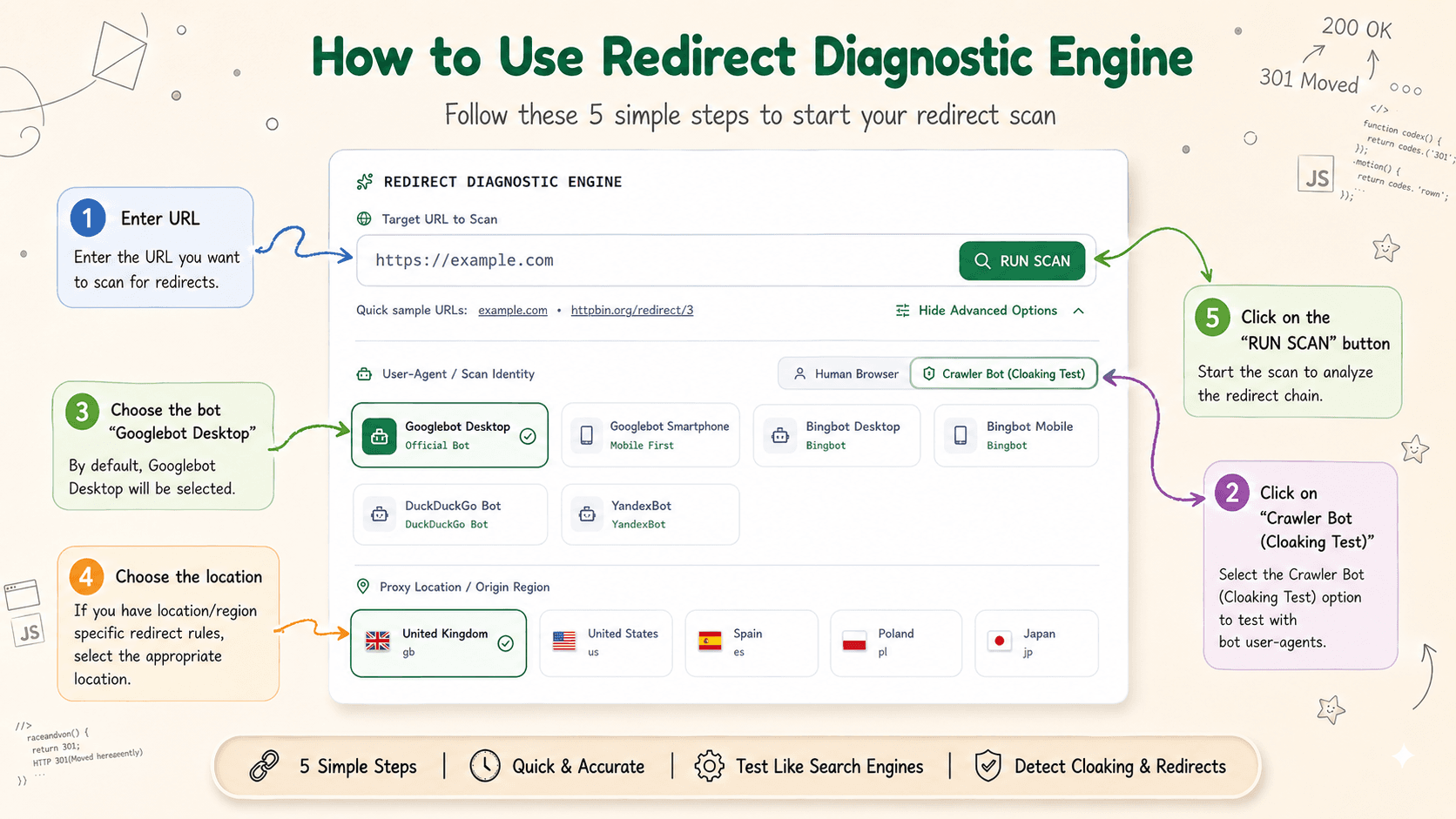
If you're unsure what Googlebot actually receives from your website, don't rely only on what you see in your browser.
Run the URL through our Redirect Checker (selecting Googlebot user agent identity) and compare the crawler response with the normal page. If you find a significant difference, investigate the reason before assuming it is cloaking.
The goal is simple: find out whether Googlebot and your visitors are receiving substantially different experiences—and understand why.
Redirect Checker (with Bot Identity Simulation)
Simulate Googlebot Desktop, Googlebot Mobile, and Bingbot to verify search cloaking and user-agent redirects.